
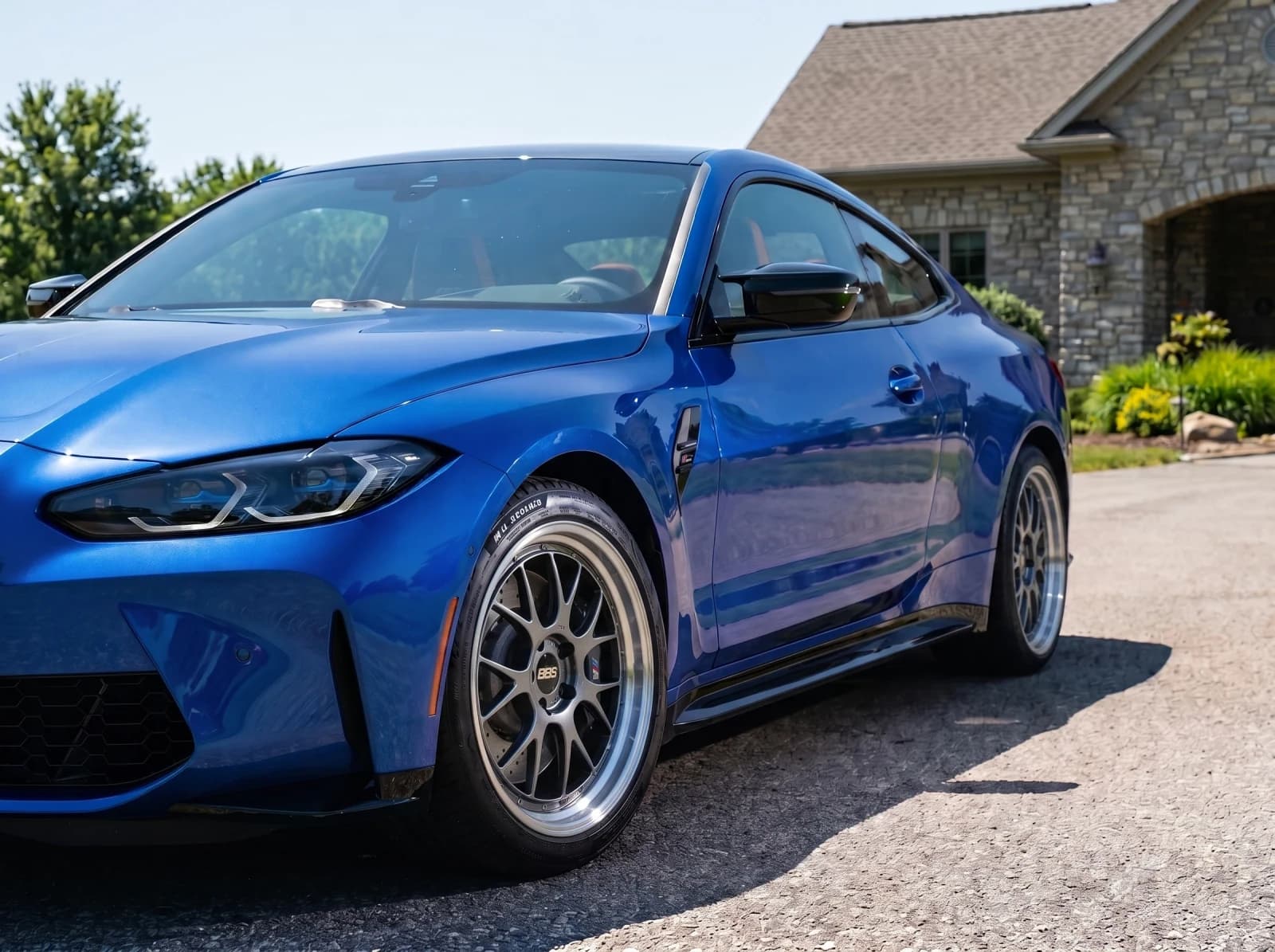
Photoshop wheels on your car, or use AI?
You can photoshop wheels onto a car photo by hand. Here is how to do it, where it gets hard, and when an AI wheel visualizer is the faster choice.
The quick answer
Use Photoshop for one image you want to perfect by hand. Use an AI wheel visualizer when you want to compare several wheels on your own car photo without editing.
Either way, the image shows the look. Confirm wheel size, offset, and clearance before buying.
01 / Compare
Three ways to put wheels on a car photo
They differ in how much work you do and how close the wheel stays to the real one.
Photoshop by hand
Photoshop, Photopea, GIMP
One polished image where you want full control over every pixel.
You repeat the cutout, perspective, and shadow work for every wheel you try.
General AI image tools
ChatGPT, Gemini, and similar editors
Quick style ideas when you do not have a specific wheel in mind.
The wheel may not match a real model, and other parts of the car can change.
AI wheel visualizer
WheelBlend
Trying several real wheels on your own car photo and comparing them.
It shows the look. It does not confirm that the wheels fit your car.
02 / By hand
How to photoshop wheels on a car
These steps work in Photoshop and in free editors such as Photopea and GIMP.
Start with matching photos
Pick a car photo and a wheel photo shot from a similar angle. A side-on wheel will not sit well on a three-quarter car photo.
Cut out the new wheel
Select the wheel and remove its background. Keep the cutout on its own layer so you can adjust it later.
Match size and perspective
Scale the wheel to the tire, then use Distort or Perspective so its oval matches the wheel on the car.
Mask it under the fender
Add a layer mask and hide the parts of the wheel that the fender, tire, and brake caliper should cover.
Match light and shadow
Adjust brightness and color to suit the photo. Paint the shadow at the top of the wheel where the arch blocks the light.
Repeat for the other wheel
The rear wheel sits at a different size and angle, so it needs its own scale, perspective, and mask.
03 / Reality check
Where it gets hard
The cutout is the easy part. These four things decide whether the result looks real.
- Perspective
A wheel that is slightly the wrong shape looks pasted on, even when the cutout is clean.
Check: Compare the wheel's oval with the tire around it.
- Front and rear wheels
The two wheels are different sizes in the photo and turn at different angles.
Check: Look at both wheels together, not one at a time.
- Shadows and reflections
The arch shadow and the light on the spokes are what make a wheel look like it belongs in the photo.
Check: Zoom in on the top of the wheel under the fender.
- Every new option
Choosing wheels means comparing several. Each one is a new cutout and a new round of adjustments.
Check: Count how many wheels you want to compare before you start.
04 / The faster way
Let an AI wheel visualizer do the editing
WheelBlend does the cutout, perspective, and lighting for you. Upload your car and a wheel, and get a preview in about 15 seconds.
No cutouts
Upload a wheel photo, a marketplace screenshot, or a PNG. The background is removed for you.
Both wheels at once
The front and rear wheels are fitted to your photo's angle in the same render.
Change it without starting over
Try another wheel, finish, color, or ride height on the same car photo.
New to it? Read how to try wheels on your car for photo tips, or see how the best wheel visualizers compare.
05 / Common questions
Photoshop and AI wheel edits
See the wheels on your car.
Upload a car photo and a wheel image. No editing needed.